Installation Guide
How to Install Shayntech Excel AI Agent
Takes about 5 minutes. Works on Windows with Microsoft Excel (desktop version).
Always downloads the latest version directly from GitHub
Download the manifest file
Click the green Download manifest.xml button above (or below). This is the file Excel uses to load the add-in. Save it somewhere you can find it — your Downloads folder is fine.
Browser download notification — manifest.xml saved to your Downloads folder
Create the add-in folder
Open File Explorer and navigate to your C: drive. Create a new folder called ExcelAddins.
C:\ExcelAddins
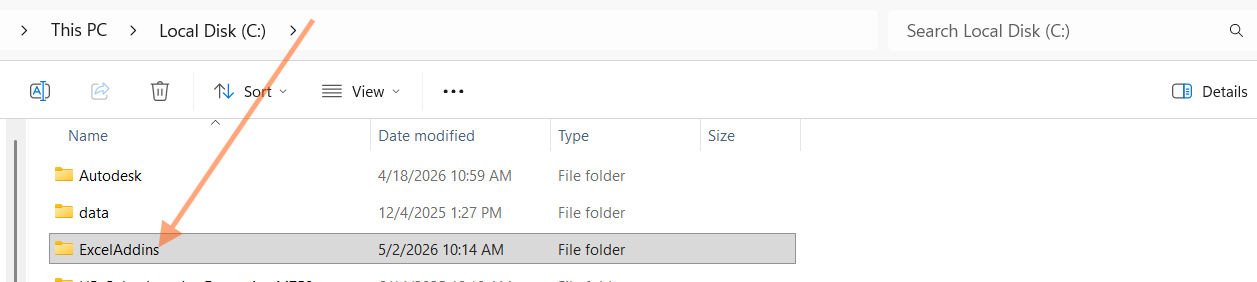
C:\ExcelAddins folder created on your C: drive
Copy manifest.xml into the folder
Move the manifest.xml file you downloaded in Step 1 into the C:\ExcelAddins folder.
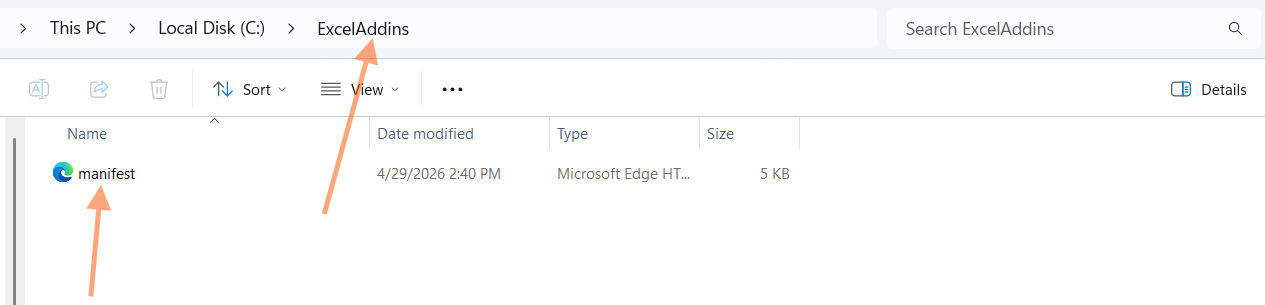
manifest.xml inside the ExcelAddins folder
Share the folder as a network share
Excel requires the add-in folder to be shared as a network location. Follow these steps:
- Right-click the ExcelAddins folder
- Click Properties
- Go to the Sharing tab
- Click Share
- Click Share again in the popup
- Click Done
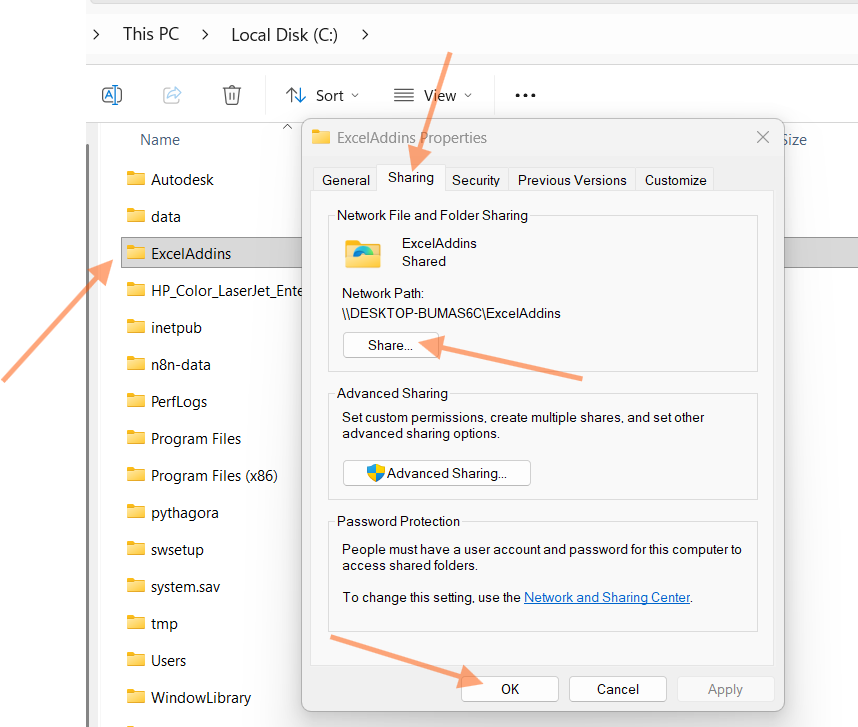
ExcelAddins Properties → Sharing tab — the folder is shared as \\localhost\ExcelAddins
Add the catalog in Excel Trust Center
Open Microsoft Excel. Navigate to:
File → Options → Trust Center → Trust Center Settings → Trusted Add-in Catalogs
In the Catalog Url field, type the path below exactly, then click Add catalog.
Check the Show in Menu box next to the catalog you just added. Click OK on all dialogs.
\\localhost\ExcelAddins
File → Options at the bottom of the left sidebar
Excel Options — click Trust Center in the left panel

Click the Trust Center Settings… button
Trusted Add-in Catalogs tab — your catalog appears in the table
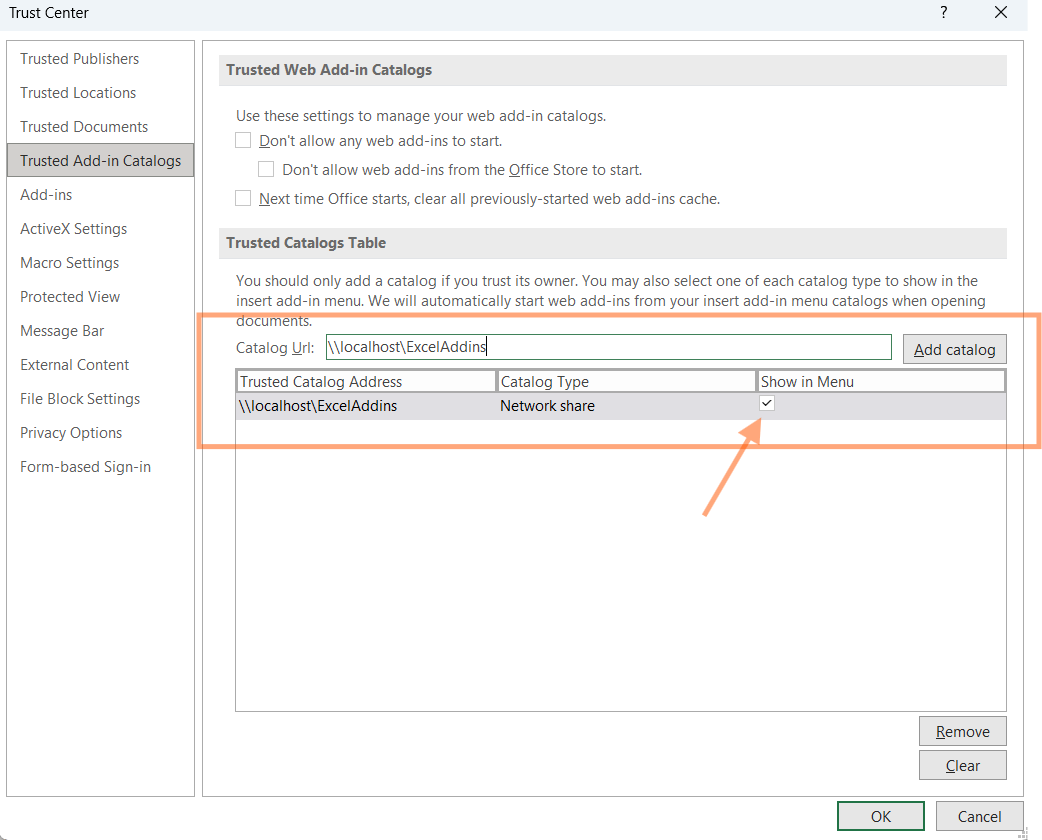
Make sure Show in Menu is checked, then click OK
Restart Excel
Close Excel completely and reopen it. This step is required — the catalog won't appear until Excel restarts.
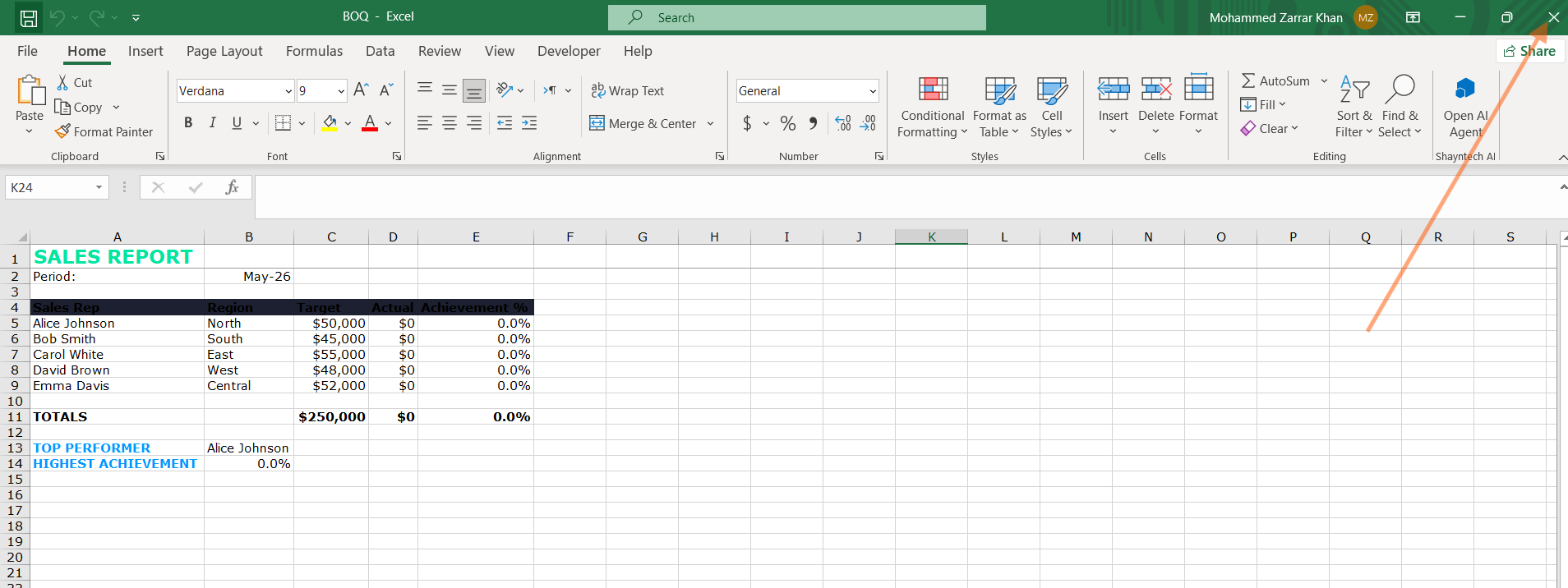
Closing Excel completely before reopening — required for the catalog to appear
Insert the Add-in
In Excel, go to Insert → My Add-ins. Click the SHARED FOLDER tab. You will see Shayntech AI Agent listed. Click it, then click Add.
The task pane will open on the right side of Excel.
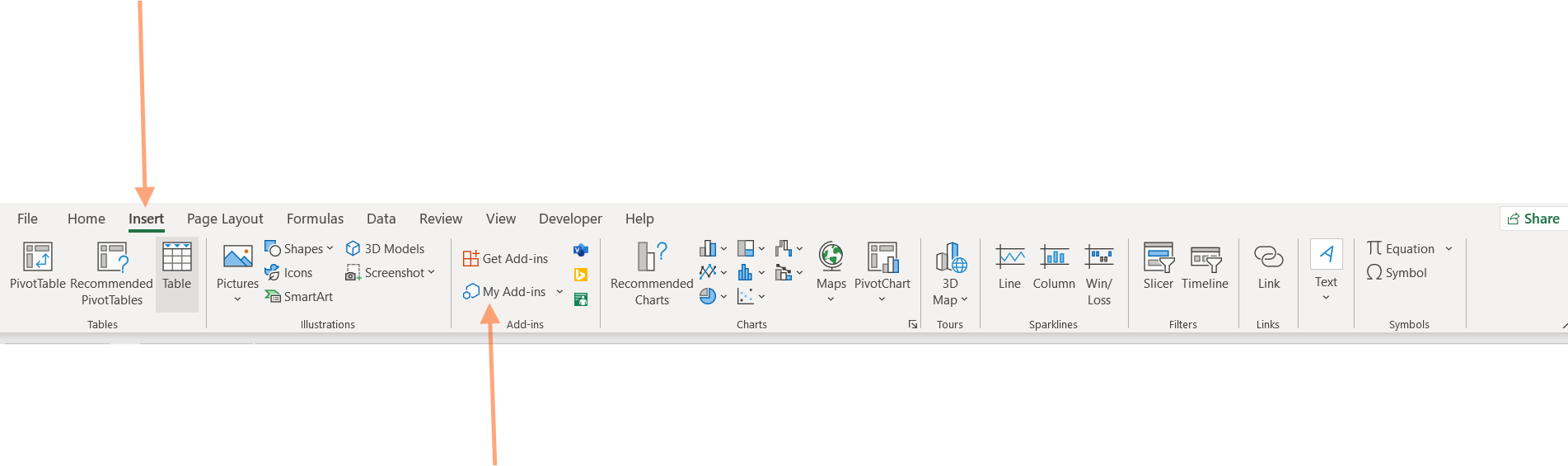
Excel ribbon — Insert tab with My Add-ins button highlighted
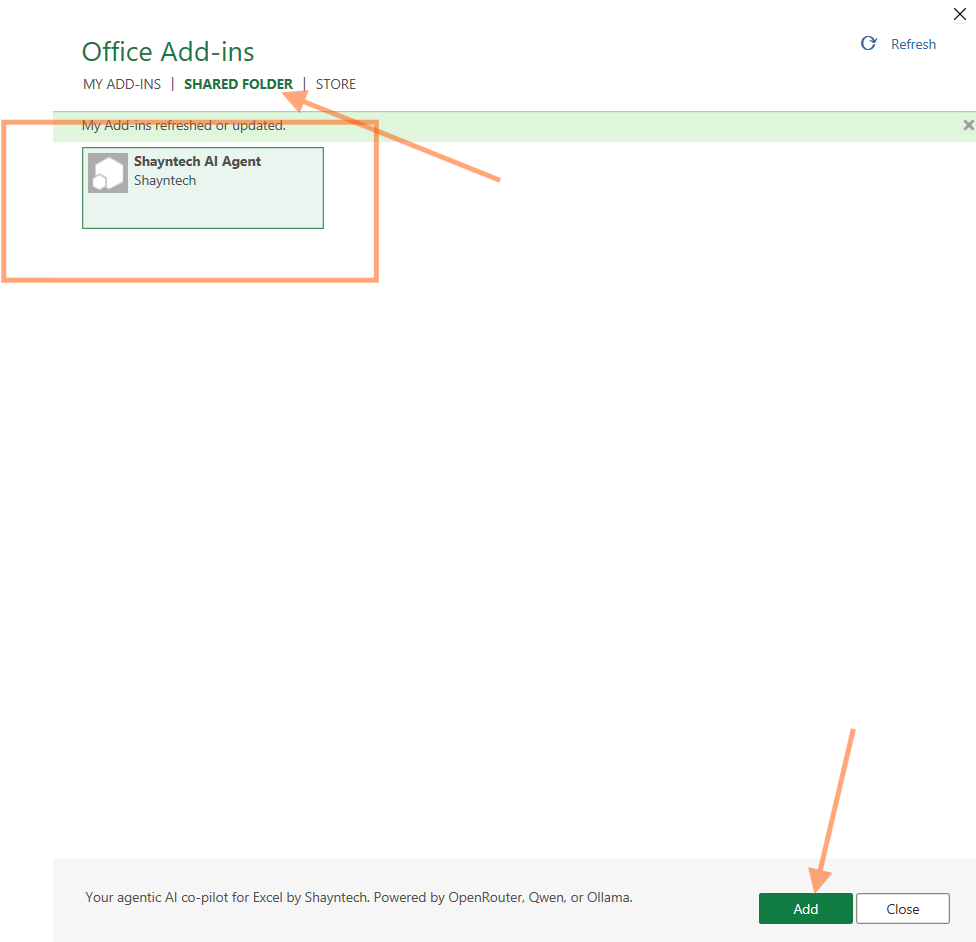
My Add-ins → SHARED FOLDER tab showing Shayntech AI Agent — click Add
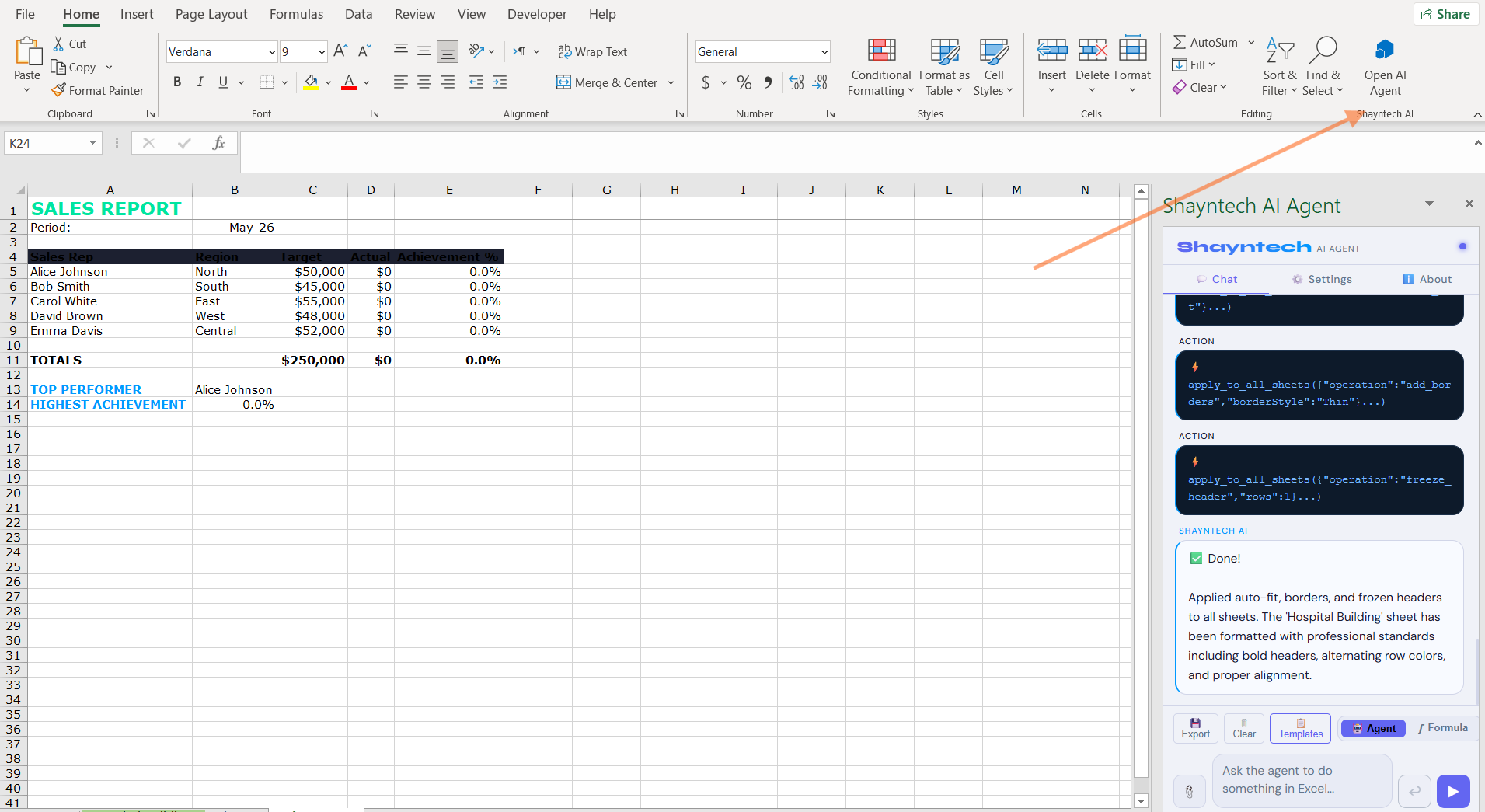
Excel with the Shayntech AI Agent task pane open on the right side
Configure your AI provider
In the task pane, click the Settings tab. Choose your AI provider, enter your API key, and click Save Settings.
Get a free API key from:
- openrouter.ai — free models available, no credit card needed
- aistudio.google.com — Google Gemini, generous free tier
- console.groq.com — Groq, free tier available
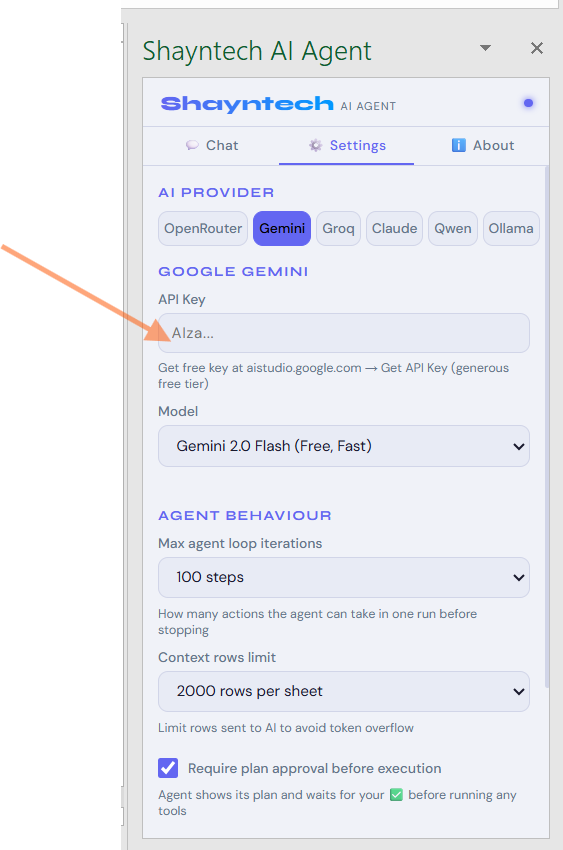
Settings tab — choose your AI provider, paste your API key, then click Save Settings
You're ready!
Go back to the Chat tab. Type a command like Analyze my data and create a chart and press Enter. The AI agent will start working.
The Shayntech AI Agent task pane working inside Excel — type a command and the agent responds
Need the manifest.xml file?
Download it directly from GitHub — always the latest version.
Troubleshooting
Something not working? Check these first.
I don't see the "Shared Folder" tab in My Add-ins
You skipped Step 5 or didn't restart Excel. Go back to Trust Center Settings and make sure the catalog URL is exactly \\localhost\ExcelAddins and the Show in Menu checkbox is checked. Then fully close and reopen Excel.
It says "Add-in could not be loaded"
Make sure the Replit server is running. Open https://excelai.replit.app/taskpane.html in your browser — if it loads, the server is up. If you see a sleeping screen, wait 30 seconds for it to wake up, then try again in Excel.
The task pane is blank or showing an old version
Excel caches the add-in. To force a refresh: Close Excel → open File Explorer → navigate to %LOCALAPPDATA%\Microsoft\Office\16.0\Wef\ → delete all files inside that folder → reopen Excel.
Settings tab or buttons are not clickable
Same cache issue as above. Clear the Wef folder and restart Excel.
I see "Office.js is loaded outside of Office client" warning
This warning appears when you open the taskpane URL in a regular browser. It is completely normal and does not affect how the add-in works inside Excel.
Can I use this on Mac?
Not currently. The manifest sideloading method described here only works on Windows. Mac support requires a different installation method — contact us if you need Mac support.
Still stuck?
Contact us for help